Order Mapping Test Results for NetSuite Connector
View order mapping test results in NetSuite Connector to ensure accurate data synchronization and error tracking.
The Order Mapping Test Results feature allows users to preview the data sent by the NetSuite Connector for orders. This functionality is crucial for organizations integrating their order management system with NetSuite, as it helps to ensure that order data is accurately mapped and debugged.
How to Access Order Mapping Test Results
There are two primary methods for viewing order mapping results in the NetSuite Connector:
From the Orders Dashboard
- Navigate to Data Flows > Orders.
The Orders dashboard will display all orders imported by the NetSuite Connector. - Use the search field to find the specific order you want to review.
For detailed instructions, see Searching for an Order in NetSuite Connector. - Once you find the order, click the Action menu located on the right side of the order entry.
- Choose Show Order Mapping.
The order mapping test results will then be displayed.
From the Order Mappings Page
- Go to Mappings > Orders.
- Click the Order tab.
- Select Test Mappings.
This opens the Test Order Mappings window. - In the Enter the ID of an <ConnectorName>/Default Order in FarApp field, type in the order number.
- Click Show Mapping.
The order mapping test results will be presented.
Understanding the Order Mapping Results
The Test Order Mappings window displays two essential sections:
-
Customer Output
This section contains the customer mappings related to the selected order.
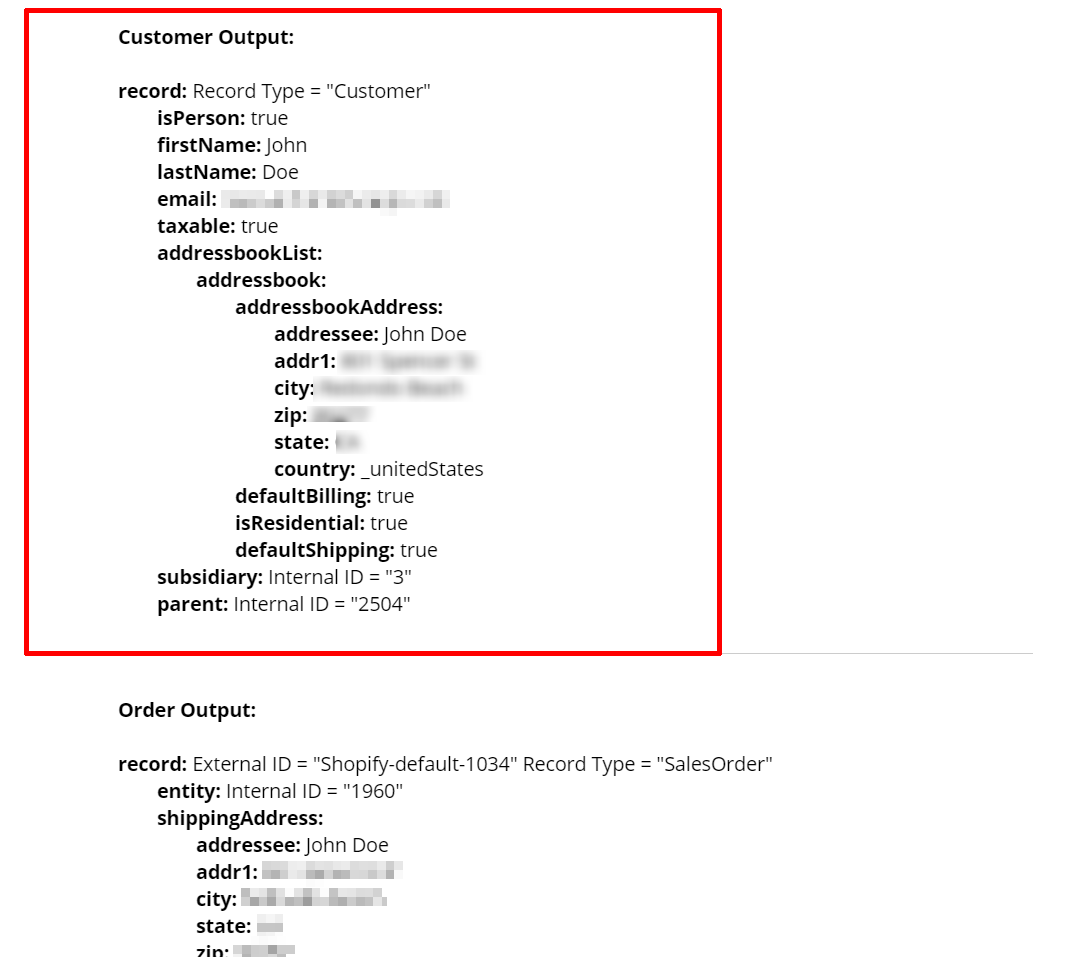 Note: If a fixed customer is used for the order, this section will not be shown.
 -
Order Output
This section illustrates the order mappings associated with the selected order.
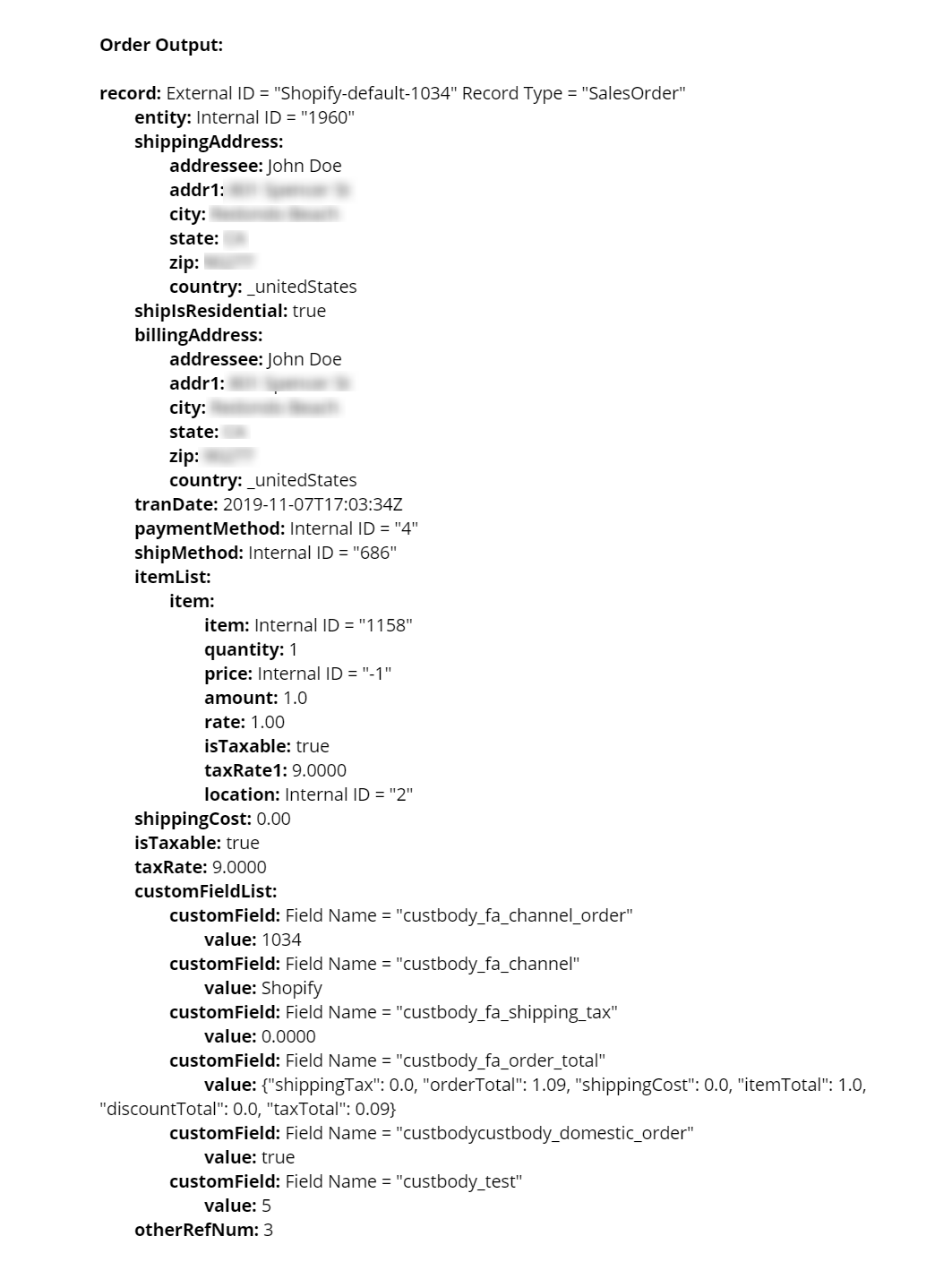
Important: The mapping results reflect the state of the mappings and order data at the moment of viewing. This means that you may not see the same results as those recorded when the order was initially sent to NetSuite.
Related Topics
- NetSuite Connector Order Sync Management
- Order Mappings in NetSuite Connector
- Mapping Order Location in NetSuite Connector
- Setting Up Custom Order Mappings in NetSuite Connector
- Mapping a Subsidiary on Orders in NetSuite Connector
- Troubleshooting Order or Fulfillment Sync Errors in NetSuite Connector
- NetSuite Connector Order Sync FAQ
Frequently Asked Questions (4)
How can I view order mapping test results from the Orders Dashboard in NetSuite Connector?
Is it possible to test order mappings directly from the Order Mappings Page in NetSuite Connector?
Will the order mapping test results always match the state when the order was initially sent to NetSuite?
What happens in the Customer Output section if a fixed customer is used for the order?
Was this article helpful?
More in Order Management
- Vendor Credit Inbound Transaction Support in NetSuite 2023.2
NetSuite 2023.2 enhances order management with inbound vendor credit transaction support, streamlining processing.
- FedEx Ship API 2026.1 Upgrade: MFA Requirement in NetSuite
MFA is now required for registering FedEx Ship API in NetSuite 2026.1. Introduction Introduction Introduction Introduction
- FedEx Account Integration Re-Registration in NetSuite 2026.1
Re-register your FedEx account in NetSuite 2026.1 using MFA for secure shipping label creation without disruptions.
- ZPLII FedEx Label Types for Tire Shipping in NetSuite 2026.1
ZPLII FedEx label types streamline tire shipping in NetSuite 2026.1, enhancing efficiency with dual bar coding.
Advertising
Reach Order Management Professionals
Put your product in front of NetSuite experts who work with Order Management every day.
Sponsor This Category