Customizing the Featured Product Extension in SuiteCommerce
Customize the Featured Product extension in SuiteCommerce to enhance product display and improve customer engagement.
The Featured Product extension enables developers to prominently display specific products within a CMS area of a SuiteCommerce site. Customizable options include displaying the product price and availability, overlaying text on images, adding button text, and showcasing alternative images. However, for more complex alterations, modifications to the template and Sass files may be necessary.
Customizing the Featured Product Extension
To customize the Featured Product extension using the override method, follow these steps:
Note: Each instance of a featured product generates an HTTP call to the item's API. To avoid performance issues, refrain from using this method for a large set of featured products; instead, consider utilizing the Featured Category extension.
- Navigate to
Workspace/Extras/Extensions/SuiteCommerce/FeaturedProduct/Modules/FeaturedProductCCT/Sass/_featuredproductcct.scss. - Copy this source file to your clipboard.
- Paste a copy into the corresponding location within your theme's Overrides directory, for instance,
Workspace/Theme/Overrides/SuiteCommerce/FeaturedProduct/Modules/FeaturedProductCCT/Sass/_featuredproductcct.scss.Important: Do not rename these files. They must retain the same name for the override method to function.
- Open the newly placed Sass file from your Overrides directory.
- Start your local server using
gulp theme:local.Note: Files must be in the correct locations prior to starting the local server; otherwise, changes will not be detected. Monitor the CLI log to confirm which overrides are being watched.
- With your server running, you can add your desired styles to the copied Sass file. For example, to resize the product image and adjust the product details to show a shorter description, use the following code:
javascript1.home-page .featureproductcct-layout {2 .pdp-features, .pdp-basics, .pdg-materials {3 display: none;4 }5 .product-image {6 max-height: 250px;7 }8}
- When ready, utilize your theme developer tools to test or deploy the updated theme. Refer to the Test and Deploy Your Theme documentation for specific procedures.
Visual Results
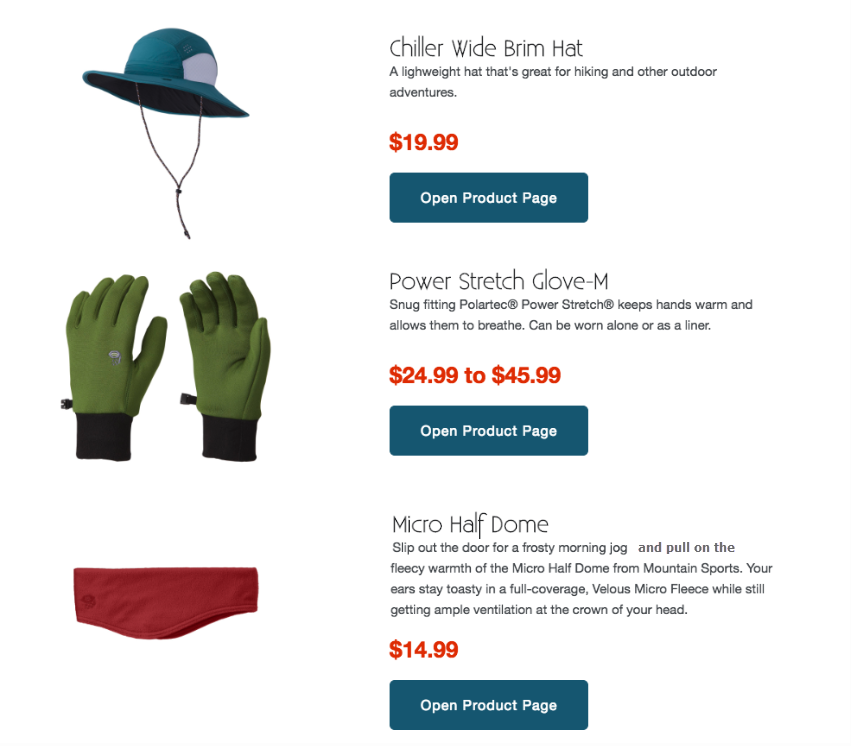
After implementing the above customizations, the appearance of the blog post can be modified to include additional featured products and various button styles, as illustrated in the following image:
By following this guide, developers can effectively customize the Featured Product extension to enhance user experience and site functionality in SuiteCommerce.
Frequently Asked Questions (4)
Can I use the Featured Product extension for a large number of featured products on my SuiteCommerce site?
What file should I modify to apply custom styles to the Featured Product extension in SuiteCommerce?
Is renaming the file in the Overrides directory allowed when customizing the Featured Product extension?
What should I do if changes to the Featured Product extension are not detected when I start the local server?
Was this article helpful?
More in Commerce
- SuiteCommerce CAPTCHA Configuration Options and Setup
Configure SuiteCommerce CAPTCHA for enhanced security. Enable CAPTCHA for registration, login, guest checkout, and orders.
- Single Sign-On Integration for NetSuite Web Stores
Implement inbound single sign-on integration for NetSuite web stores using SAML or OpenID Connect for seamless access.
- Facets Management for Commerce in NetSuite
Facets management in NetSuite Commerce optimizes item search filters, enhancing performance and improving user experience.
- SuiteCommerce Analytics Data and Cookie Consent Integration
SuiteCommerce Analytics Data enables tracking of shopper behavior. This requires a cookie consent extension for user preferences.
